This project takes a cheap Ilonda WiFi fish feeder and swaps its locked down chip for an ESP8266 running ESPHome. Once it’s done, the feeder shows up in Home Assistant and you can feed the fish on a schedule, or from your phone wherever you are. We use ours every day, and it’s brilliant when we’re away.
The original feeder only works with its own app, and you can’t do much with it. With ESPHome on board it becomes part of your smart home like anything else. You can set feeding times, change portion sizes, and check it’s working from your Home Assistant dashboard.
You also get to choose exactly how your fish are fed, whether that’s lots of small feeds through the day or one bigger one. And because it’s in Home Assistant, you can tie it into everything else, like getting a notification on your phone when it needs refilling, or linking feeding time to lights that follow a natural day and night cycle.
Regular, consistent feeds also mean less wasted food and a cleaner tank. Here’s how to build one.
Kit list
- 1x Ilonda Intelligent WiFi App Fish Feeder: https://www.aliexpress.com/i/2255799886082555.html?gatewayAdapt=4itemAdapt
- 1x ESP8266 ESP-12F: https://www.amazon.co.uk/dp/B06Y1ZPNMS?ref=ppx_yo2ov_dt_b_product_details&th=1
- 1x micro USB cable to connect the ESP board to your computer
- A soldering iron and solder
- The ESPHome add-on set up in Home Assistant
The ESPHome devices site also has a page on this feeder: https://devices.esphome.io/devices/ilonda-wifi-smart-fish-feeder
Steps
-
Plug the ESP board into your PC with the micro USB cable. Open Chrome and go to your Home Assistant server (http://homeassistant.local:8123). Choose ESPHome from the menu on the left, then click New Device in the bottom right corner. (You need to use Chrome, as other browsers can’t talk to the ESP device.)
-
Give the device a sensible name, like “Fish-Feeder”, and click Next.
-
In the installation window, click Connect.
-
A box will pop up listing the COM port for your ESP board. Select it and click Connect. If you can’t see the device, you’ll probably need to install the driver first; just follow the instructions on screen.
-
ESPHome will now install the latest firmware on the board and give it a basic configuration.
-
When that’s finished, the device will appear in the ESPHome dashboard. Now we need to set it up to control the feeder. Click Edit on the new device and paste in the following YAML.
esphome:
  name: fish-feeder
  friendly_name: Fish Feeder

esp8266:
  board: esp01_1m

logger:

# Enable Home Assistant API
api:
  encryption:
    key: "Your KEY HERE"

ota:
  password: "YOUR PASSWORD HERE"

wifi:
  ssid: !secret wifi_ssid
  password: !secret wifi_password

# Binary Sensor to allow relay to be switched when physical button is pressed
binary_sensor:
  - platform: gpio
    id: button
    pin:
      number: GPIO4
      mode:
        input: true
        pullup: true
      inverted: True
    name: 'Switch feeder'
    on_press:
      - switch.turn_on: relay

  - platform: status
    name: "Status"

switch:
# Switch to turn feeder on for 3 seconds/off and turn on/off LED
  - platform: gpio
    name: 'Relay feeder'
    id: relay
    pin: GPIO14
    on_turn_on:
      - light.turn_on: led
      - delay: 3s
      - switch.turn_off: relay
      - light.turn_off: led
    restore_mode: ALWAYS_OFF

sensor:
# Feeder counter
  - platform: pulse_meter
    pin: GPIO12
    name: 'Counter/min'
    unit_of_measurement: 'time(s)'
    internal: true
    total:
      unit_of_measurement: 'time(s)'
      name: 'Counter feeder'

# To allow led to be controlled via GPIO
output:
  - platform: esp8266_pwm
    id: blue_led
    pin:
      number: GPIO5
      inverted: true

# LED control
light:
  - platform: monochromatic
    output: blue_led
id: led- Click Save, then Install. When the install has finished you can unplug the ESP board from USB and get the soldering iron warming up.
Be warned, this next bit is hard. Getting the original module off the feeder’s board and the ESP8266 off its own board took real care: the pads are small and close together, and it’s easy to lift one if you rush. If you haven’t desoldered surface mount parts before, practise on an old board first, use plenty of flux, and take your time.
- Carefully desolder the ESP chip from its board. Then open up the fish feeder and remove the chip that came on its circuit board. That one’s locked, so it can’t be reflashed, which is why we’re replacing it.
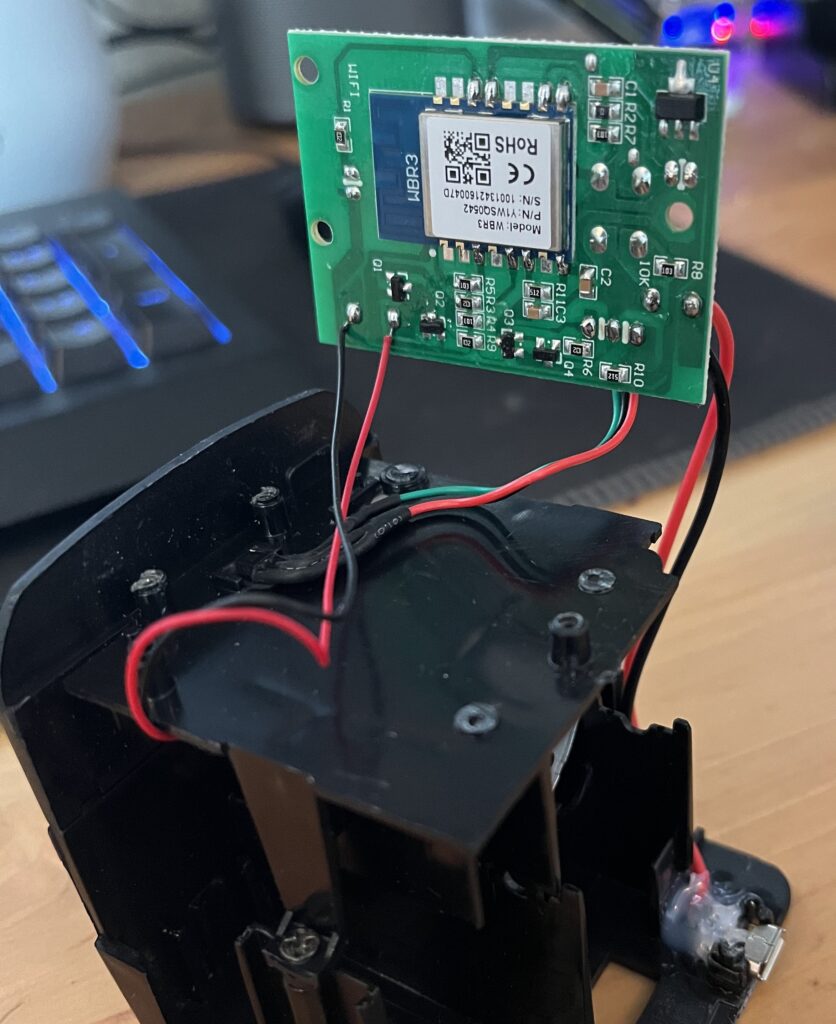
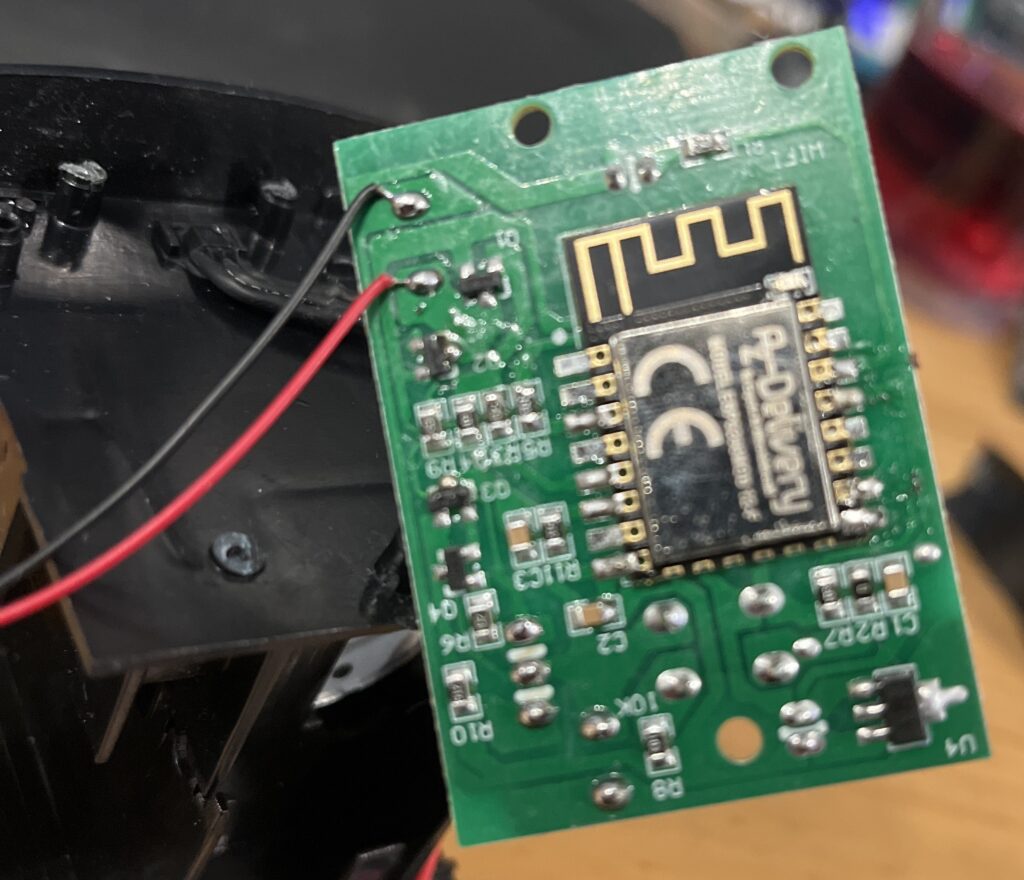
- Solder the ESP8266 chip you flashed earlier onto the fish feeder’s circuit board, using these pins:
- Once it’s soldered in, put the feeder back together and power it on. It should appear in Home Assistant under Settings > Devices & Services as a new device, ready to set up.
Fish Feeder
How I use it
Ours feeds a tropical tank, and Home Assistant runs the whole routine:
- Feeding twice a day. An automation feeds the fish at 1pm and 4:30pm, every day. The feeder also keeps a count of every feed in Home Assistant.
- Temperature alerts. A temperature sensor in the tank warns me if the water goes above 28.1°C or below 21.9°C for more than 20 minutes, both on my phone and in Home Assistant. The 20 minutes stops it nagging over a brief blip.
- Lights on a schedule. The tank’s day light comes on at 10am, switches to the night light at 8pm, and everything goes off at 11pm.
The feeding automation is about as simple as Home Assistant gets:
alias: Fish feeder
triggers:
  - trigger: time
    at: "13:00:00"
  - trigger: time
    at: "16:30:00"
actions:
  - action: switch.toggle
    target:
      entity_id: switch.fish_feeder_relay_feeder
Once it’s in Home Assistant the feeder stops being a gadget with its own app and becomes part of the routine, alongside the lights and the temperature alerts, all in one place.
Related reading
total 2
More projects
total 12